How to Watermark Digital Art in 2026
Digital artists in 2026 still export, resize, and post. The threat model got noisier: training scrapes, style prompts, and AI wipe tools on anything public. This guide walks a current file path from Procreate, Photoshop, or Clip Studio into Jingwei, then onto social or a storefront. For the general art-watermark noun cluster, see How to watermark your art.
Keep the layered master in your painting app. Watermark only the export you plan to share. That habit matters more in 2026 than any single filter preset.
Export from your painting app first
Procreate: share as PNG at the longest edge your platform needs. Flatten only that export. Keep the .procreate file offline.
Photoshop: File Export or Save a Copy as PNG. Do not stamp a soft corner logo on the master PSD as your only plan.
Clip Studio: Export (Single Layer) as PNG. Match canvas size to the feed you will use, then protect that file.
Aim for the platform size, not your 8K print master. Smaller public files shrink casual grabs and still look sharp on phones.
Run Jingwei on the public export
Open Protect in the browser. Everyday use needs no account. One image takes about 30 seconds. Uploads are deleted after processing.
Quick Credit for daily posts: faint credit plus a JW claim with your name and stated limits.
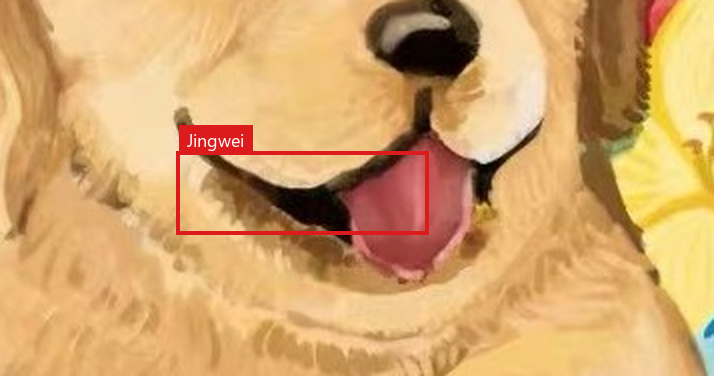
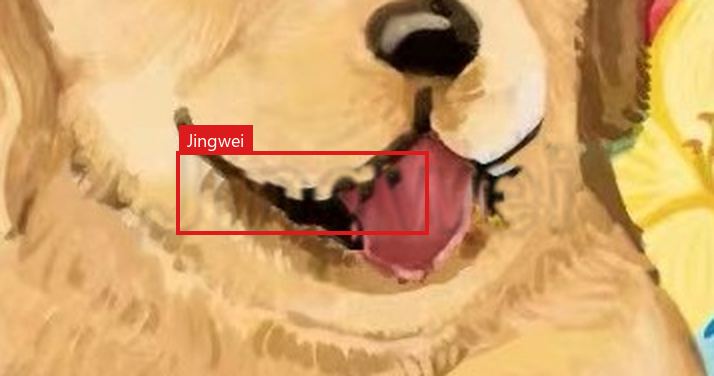
Manual when you expect a wipe, face edit, or storefront scrape. Displacement and emboss change pixels so a cheap inpaint tends to leave dirt. Face emboss lock helps portraits.
Download PNG when you care about invisible layers. Verify once so you know what a readable claim looks like for that file.
Social feeds vs storefronts
X, Instagram, and TikTok recompress hard. Prefer a stronger Manual pass for high-risk pieces. Save the live URL and a screenshot after posting.
ArtStation and portfolio sites keep larger files. Quick Credit often enough for volume posting; Manual for hero images.
Shop samples and commission WIPs follow the commissions guide. Final paid files may ship clean when the contract says so. Keep a protected portfolio crop for yourself.
Where Glaze still fits in a 2026 digital pipeline
If training scrapes and style mimics worry you more than reposts, glaze the export you accept as public-looking, then run Jingwei on the upload file. Order and limits are in Glaze and Nightshade Alternative and Jingwei vs Glaze.
Do not assume one pass preserves the other. Spot-check your own pipeline after a platform re-encode.
A short 2026 checklist
1. Master stays in the painting app or an offline drive.
2. Export a platform-sized PNG.
3. Optional Glaze or Nightshade on that public-looking export.
4. Jingwei Protect on the file you will upload.
5. Post, then save URL, time, and screenshot.
6. For commissions, decide WIP marks vs clean finals before the first deposit.
A fuller menu of options sits in Best ways to protect your art from AI.
What this workflow will not fix
A determined redraw can still wreck marks. Heavy social compression can weaken invisible signals. A JW claim helps packets and Verify reads; it is not a court filing by itself.
Corner signatures alone remain easy to crop. Jingwei layers raise wipe cost beyond a pasted name in the corner.
Watermark the next digital export
Export from Procreate, Photoshop, or Clip Studio, then protect the public copy before it hits a feed.
Open Protect on Jingwei